Roles: All Roles | Portal Type: All Portals
You can customize the appearance of your vault by selecting a light or dark theme. Dark mode provides a more comfortable viewing experience in low-light environments, while light mode offers a brighter, classic interface.
Step-by-Step Instructions
Update Your Theme from the Settings Menu
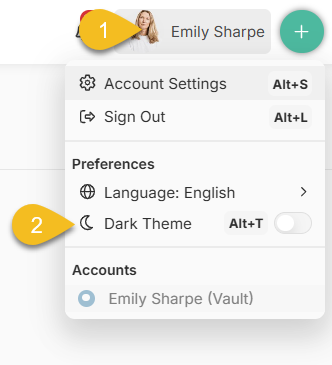
- Click your name in the top-right corner
- Locate the Dark Theme toggle
- Turn the toggle:
- On → Enable Dark Mode
- Off → Enable Light Mode
Update Your Theme from Account Settings
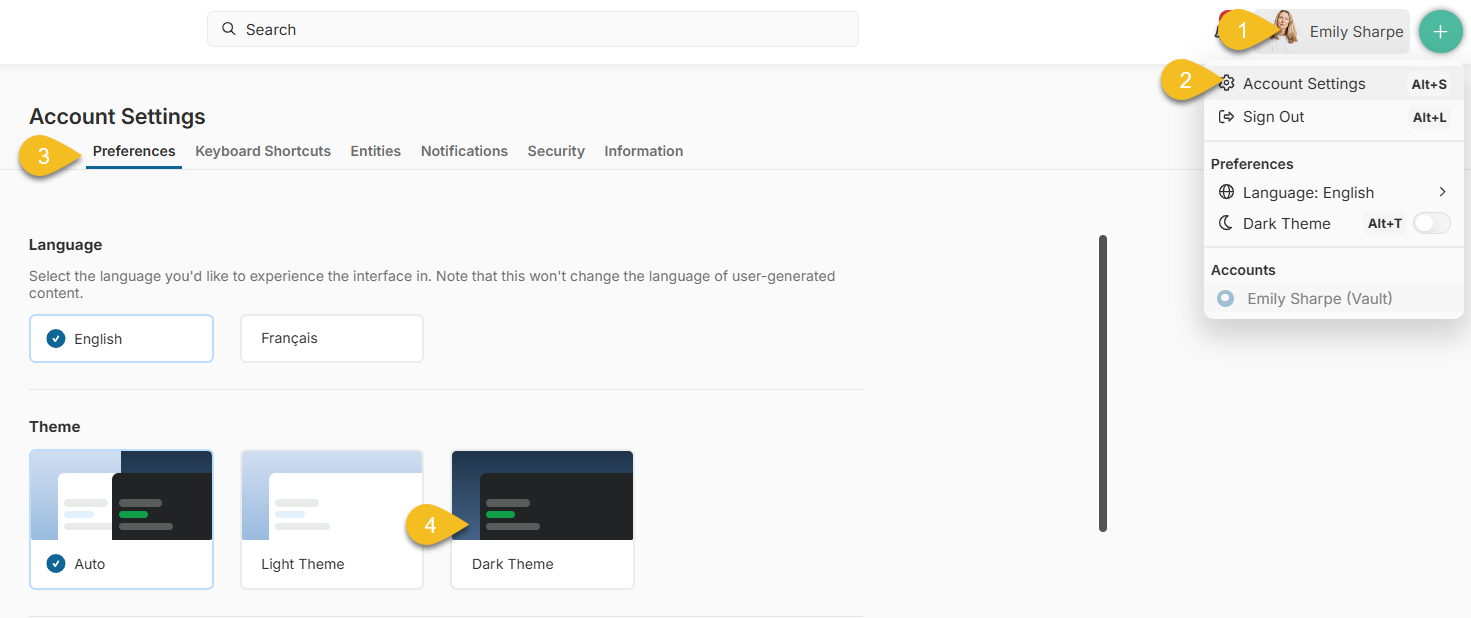
- Click your name in the top-right corner
- Select Account Settings
- Go to the Preferences tab
- Under Theme, choose one of the following options:
- Auto – Matches your device’s system settings (light or dark)
- Light – Always use light mode
- Dark – Always use dark mode
How Theme Settings Work
- The toggle provides a quick way to switch between light and dark mode
- The Theme setting allows you to define a default behaviour
- If Auto is selected, your vault will automatically adjust based on your device’s settings
Tips
- Use Dark mode in low-light environments to reduce eye strain
- Use Auto if you want your experience to match your device settings throughout the day
