
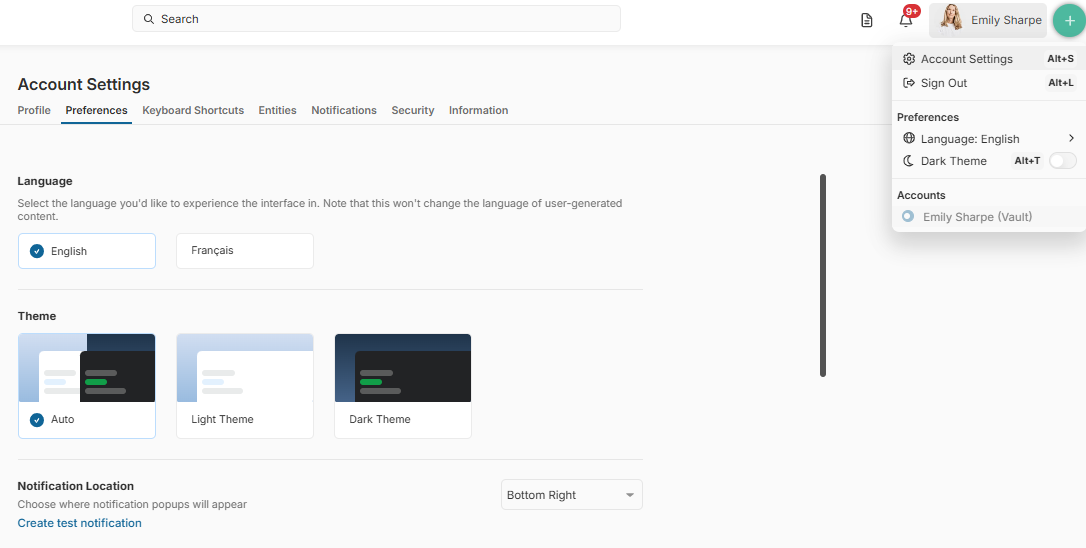
The Preferences tab in Account Settings allows you to personalize your experience, including language, theme, the location of in-app notifications, and how folders and documents are displayed.
Note: Some options may vary depending on your role and permissions.
Accessing Preferences
For Vault Owners
- Click your name in the top-right corner
- Select Account Settings
- Navigate to the Preferences tab
For Co-Owners and Collaborators
If you do not see your name in the top-right corner, you are likely inside a vault.
- Click Return to Portal (top-left corner)
- Click your name in the top-right corner
- Select Account Settings
- Go to the Preferences tab
Sections inside your Preference Settings
TABLE OF CONTENTS
- 1. Language
- 2. Theme
- 3. Notification Location
- 4. Document View
- 5. Preview Layout
- 6. Entity Tagging Preferences
1. Language
Choose the language used in the platform interface.
Available options:
- English
- Français
2. Theme
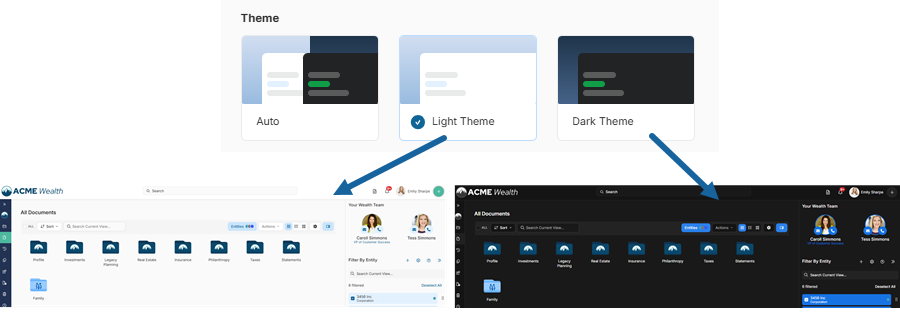
Customize the visual appearance of your account.
- Auto → Matches your system/device settings
- Light Theme → Bright interface
- Dark Theme → Dark background for reduced eye strain
3. Notification Location
Control where notifications appear on your screen.
- Select the position of notification pop-ups (e.g., bottom right)
- Use Create test notification to preview placement
4. Document View
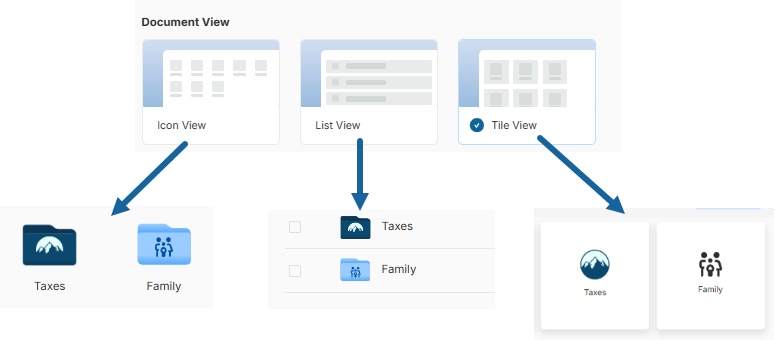
Choose how folders and documents are displayed in your vault.
- Icon View → Grid layout with thumbnails
- List View → Detailed list with file information
- Tile View → Larger visual cards for easier browsing
5. Preview Layout
Control how panels behave when previewing a document.
- Left Panel (Main Menu)
Automatically closes the navigation panel when previewing a document - Right Panel (Actions Panel)
Automatically closes the actions panel during document preview
These options help reduce distractions and maximize viewing space.
6. Entity Tagging Preferences
Define how entities are applied when uploading documents.
Options:
- Ask every time
Prompts you to select an entity for each upload - Automatic
Applies entity tags automatically based on system logic - Manual
Allows you to manage entity tagging without prompts
Note: This section is only available if your vault has Entities enabled.